
LightBurn and Fiber Laser: Complete Guide for Setup and Use
Introduction
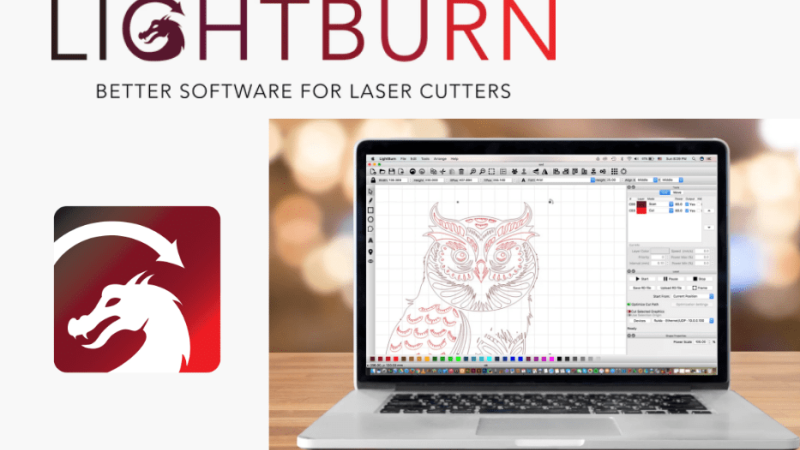
LightBurn is a powerful and intuitive software designed for controlling engraving and cutting laser machines. As one of the most popular programs for managing CO₂, diode, and fiber lasers, LightBurn offers a wide range of features that simplify the workflow. Starting with version 1.2.00, released in June 2022, LightBurn introduced support for galvo lasers, including fiber optic (fiber laser) sources. This update opened new opportunities for users, allowing them to control laser engraving and cutting equipment more efficiently.
In this article, we will explore the compatibility between LightBurn and fiber lasers, analyze the setup process, and highlight the advantages of using this software for achieving precise and professional results.
Compatibility and Setup
Fiber Lasers Compatible with LightBurn
LightBurn supports galvo lasers that use control boards compatible with EzCad2. This compatibility is crucial because it allows users to replace EzCad2 software (often considered limiting) with a more flexible and intuitive solution.
LightBurn software is compatible with the following operating systems:
- Windows
- MacOS
- Linux
Steps to Set Up a Fiber Laser in LightBurn
To set up a fiber laser with LightBurn, follow these steps:
- Install the necessary driver for the laser control board (usually provided by the manufacturer).
- Open LightBurn and go to the "Devices" menu.
- Select "Galvo" as the device type and choose the appropriate USB connection.
- Configure laser parameters, including engraving field size and pulse frequency.
- Perform calibration tests, using LightBurn options to adjust focus and beam alignment.
Once these steps are completed, the fiber laser will be ready for use with LightBurn, allowing precise and optimized engraving control.
Recommended Fiber Laser Types
When choosing a fiber laser, it is essential to consider the laser source, as it influences the equipment's performance and durability. Some of the most popular fiber sources include:
- JPT – Known for frequency flexibility and high durability.
- Raycus – A reliable and affordable option, frequently used in the industry.
- IPG – Recognized for superior quality but at a higher cost.
Each of these sources has specific advantages, depending on the desired application. If the primary goal is fine and detailed engraving, JPT and IPG are the best choices, while Raycus offers a good balance between cost and performance.
Advantages of Using LightBurn for Fiber Laser
- Intuitive and easy-to-use interface – LightBurn provides a user-friendly workspace, simplifying fiber laser setup and use.
- Extended compatibility – Supports most EzCad2 compatible galvo boards.
- Advanced laser parameter control – Allows fine adjustments of frequency, pulse duration, and laser power.
- Optimization of the engraving process – Ensures fast and precise engraving on materials such as metal, plastic, wood, or leather.
- Active support and regular updates – LightBurn frequently receives updates, constantly improving performance and compatibility with various equipment.
Testing and Adjusting the Fiber Laser
To achieve the best results with a fiber laser, it is essential to perform calibration tests and fine adjustments. LightBurn offers integrated options for:
- Focus testing – Essential for clear and precise engraving.
- Speed and power adjustment – Allows optimization of settings based on the material used.
- Distortion compensation – Avoids errors caused by beam reflections.
By conducting these tests, users can adjust parameters to obtain uniform and high-quality results.
Advanced Features and Techniques
Vector vs. Raster Engraving
LightBurn allows users to choose between vector engraving, which creates sharp and precise lines, and raster engraving, which is ideal for filling large areas with engraved patterns. Understanding the difference between these two methods helps optimize the engraving process based on the material and the desired result.
Rotary Attachment for Fiber Lasers
For cylindrical objects, LightBurn supports rotary attachments, allowing engraving on cups, bottles, and cylindrical surfaces. Users can adjust the rolling speed, step size, and rotation settings to ensure proper alignment and engraving depth.
Power and Frequency Adjustments
Unlike CO₂ lasers, fiber lasers allow adjustments to pulse frequency, impacting how materials like metal react to the engraving process. LightBurn provides a dynamic power adjustment feature, which ensures smooth transitions between different engraving depths.
Material-Specific Settings
LightBurn enables users to create and save custom profiles for different materials. Some typical settings include:
- Aluminum: High power, moderate speed, medium frequency
- Stainless Steel: Medium power, low speed, high frequency
- Plastic: Low power, high speed, low frequency
By testing and refining these settings, users can achieve the best possible engraving results for each material.
LightBurn and Industry Applications
Fiber lasers and LightBurn software are widely used in various industries, including:
- Jewelry Engraving – Fine detailing on gold, silver, and other metals.
- Industrial Marking – Permanent markings on machine parts, tools, and instruments.
- Personalized Gifts – Custom engravings on metal keychains, pens, and promotional products.
- Aerospace and Automotive – Precision engraving for serial numbers, barcodes, and logos.
LightBurn's flexibility makes it suitable for professionals and small businesses that need high-quality laser engraving solutions.
Resources and Conclusion
For those who want to learn more about using LightBurn with a fiber laser, there are multiple useful resources:
- YouTube tutorials, offering step-by-step guides for setup and use (Watch the full tutorial).
- LightBurn Community, where users can find solutions to technical problems and optimization tips (LightBurn Forum).
- LightBurn trial version, available for free download (lightburnsoftware.com).
Due to its extended compatibility and advanced features, LightBurn is one of the best software solutions for fiber laser users. With proper setup and precise calibration tests, this software can significantly improve engraving efficiency and quality, delivering professional results for any project.
If you have any questions or need assistance, leave a comment or explore the resources available on the official LightBurn website. Good luck with your laser engraving!
